Synology NAS Web Station 反向代理至 Docker 內的 API Service
[step]1[/step]
Web Station 設定
我們仍然需要在 Web Station 起一個服務,才能接收外部的 80/443 Request
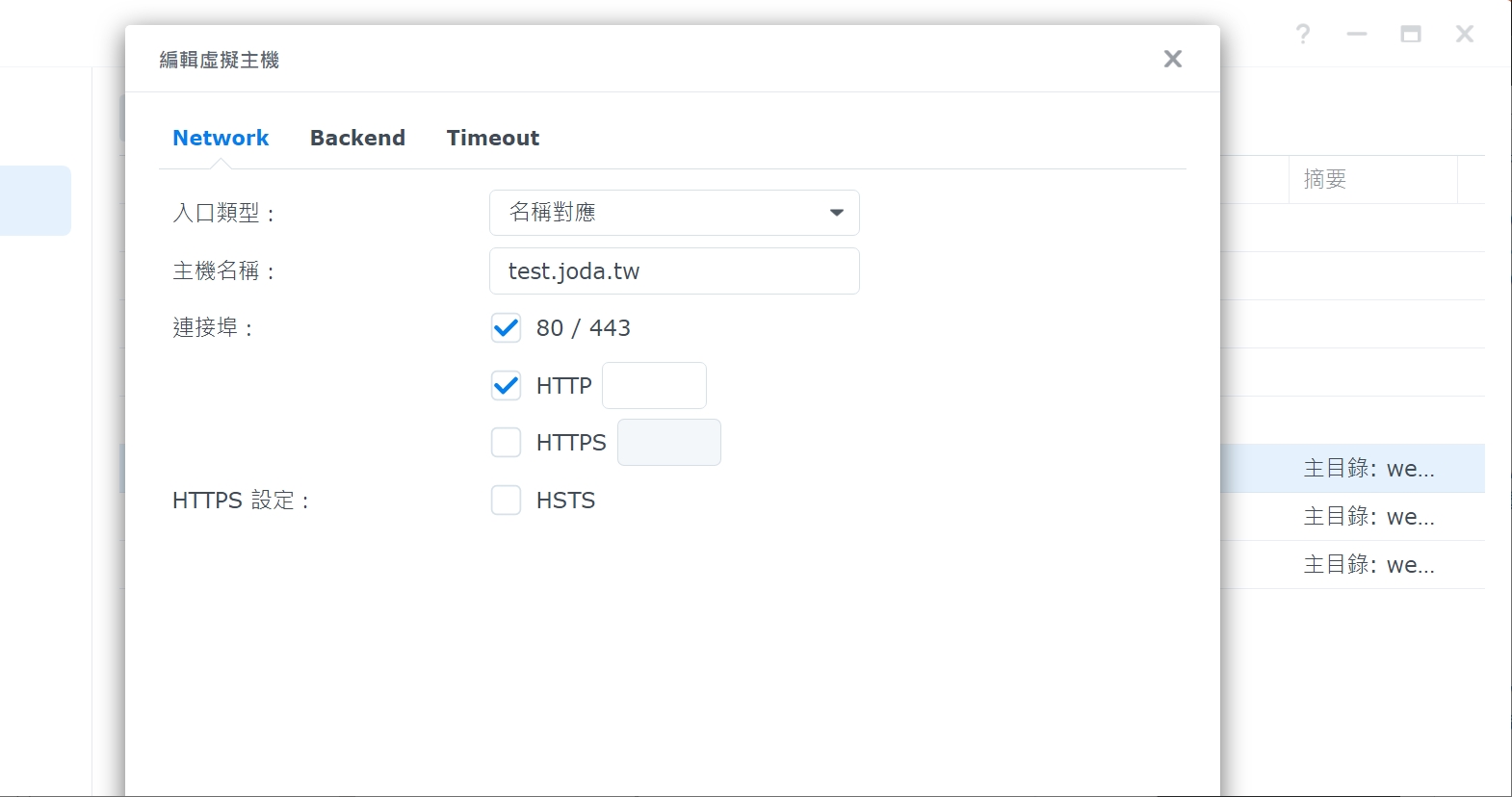
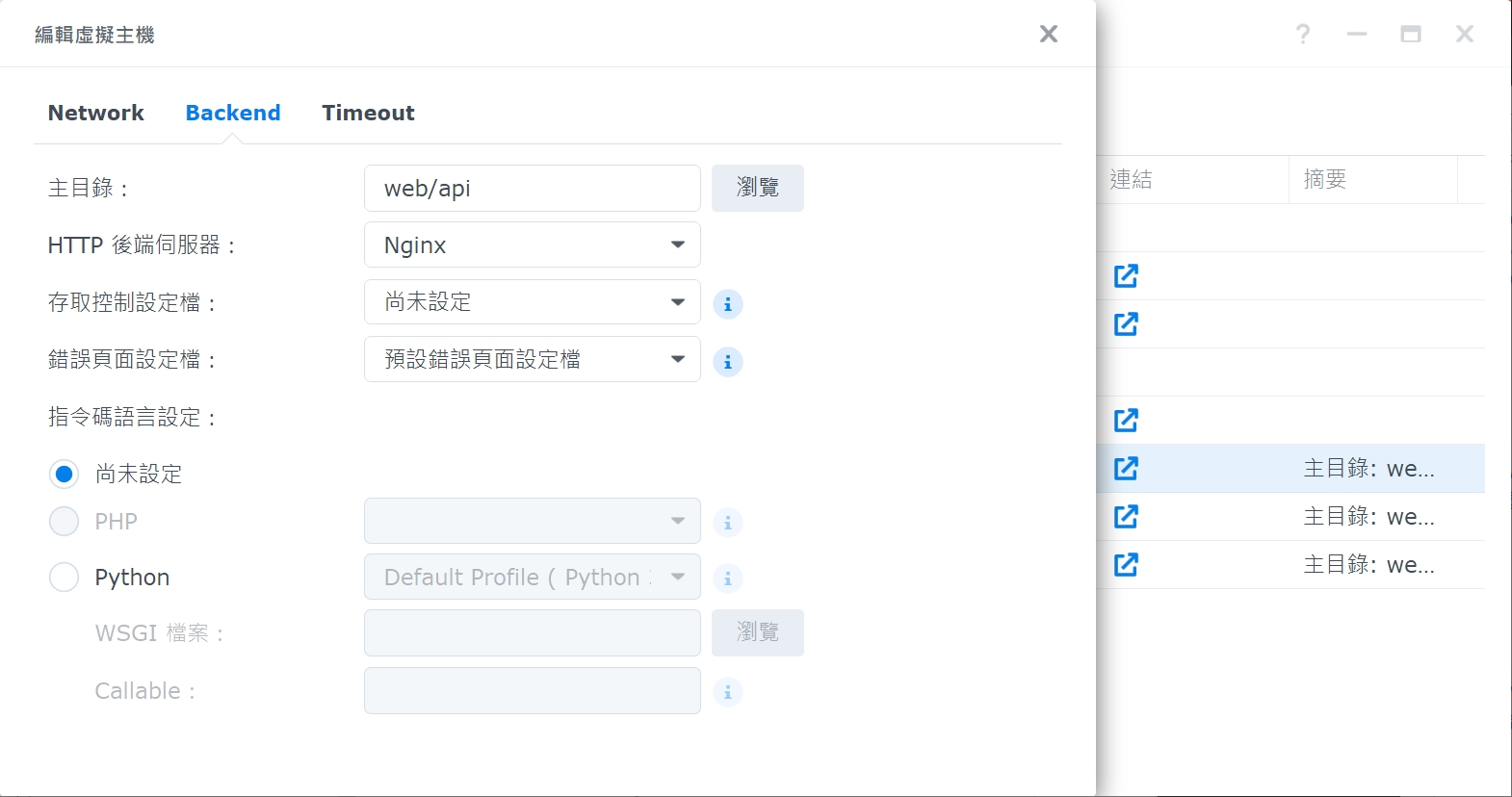
後端選擇使用 Nginx,主目錄指定一個空目錄即可
[step]2[/step]
接著就可以參照先前的 Synology NAS 佈署 Vue 專案如何修改 Nginx 設定避免出現 404 Error 作法,找到 Nginx 會讀取哪個資料夾下的設定檔,在前往該資料夾下新增設定檔
下面擷取部分內容來充充版面
- 在
/usr/local/etc/nginx/sites-enabled/server.webstation-vhost.conf取得 Nginx 設定檔
sudo cat /usr/local/etc/nginx/sites-enabled/server.webstation-vhost.conf
- 由檔案內容可以看出,每個 Server 下面會從哪邊讀入使用者設定檔,如下圖
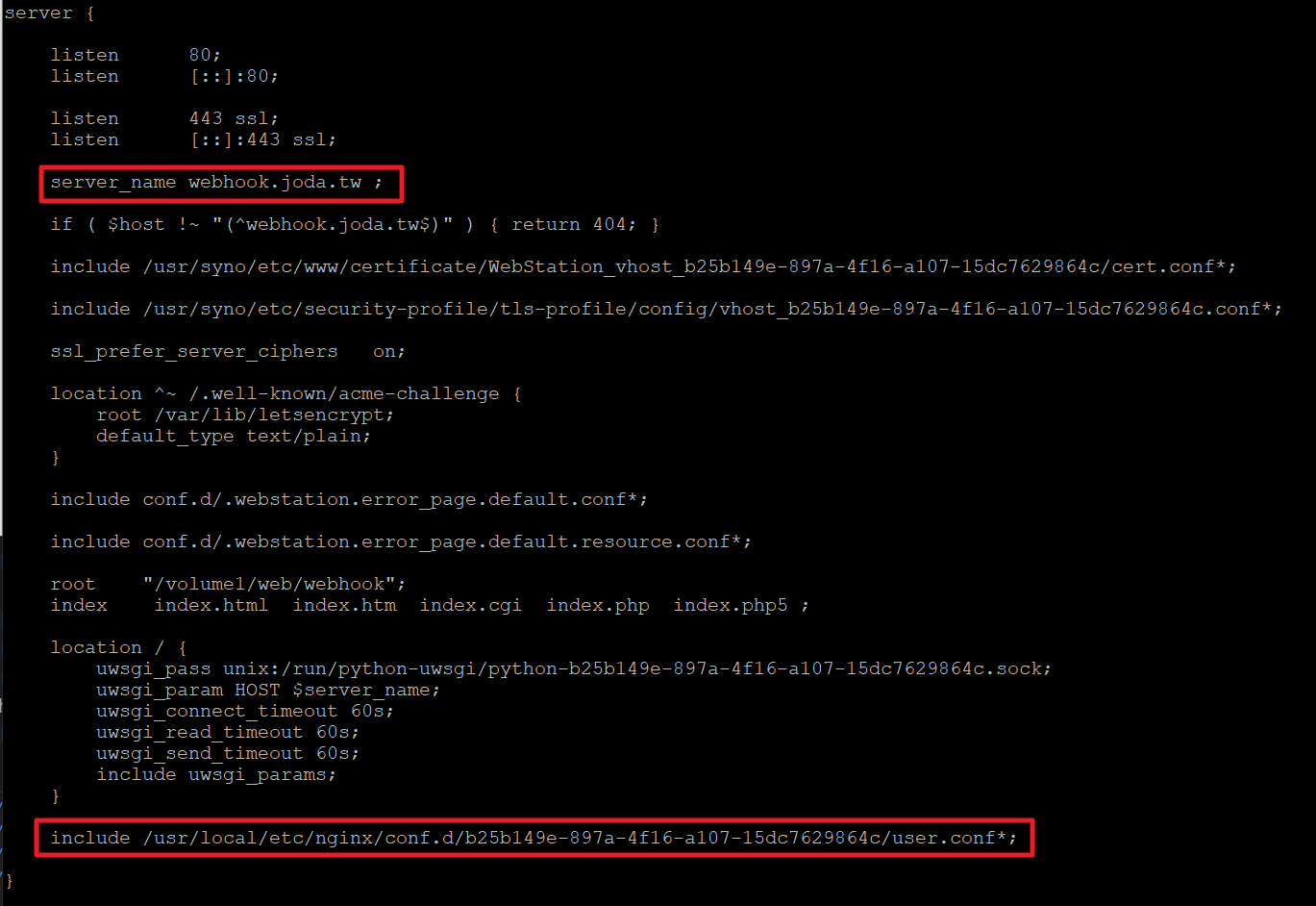
- 只要在指定的位置下,新增一個user.conf.xxx (xxx 可以取任意名稱)檔案
就會被 Nginx 找到並且讀入設定
所以我們先切換到指定的位置
cd /usr/local/etc/nginx/conf.d/83cbb4aa-eeea-4b16-97d2-b72954366
- 建立設定檔
# 建立user.conf.tool 空檔案
sudo touch user.conf.tool
- 輸入設定檔內容
location / {
  proxy_pass http://127.0.0.1:8000; #docker expose出來的port
  proxy_set_header Host $host;
  proxy_set_header X-Forwarded-For $proxy_add_x_forwarded_for;
}
- 重新啟動nginx,拜訪網址,就可以成功打到 Docker 裡的 API 了
sudo nginx -s reload
留言